Calls, texts, and alerts are silenced without waking the screen
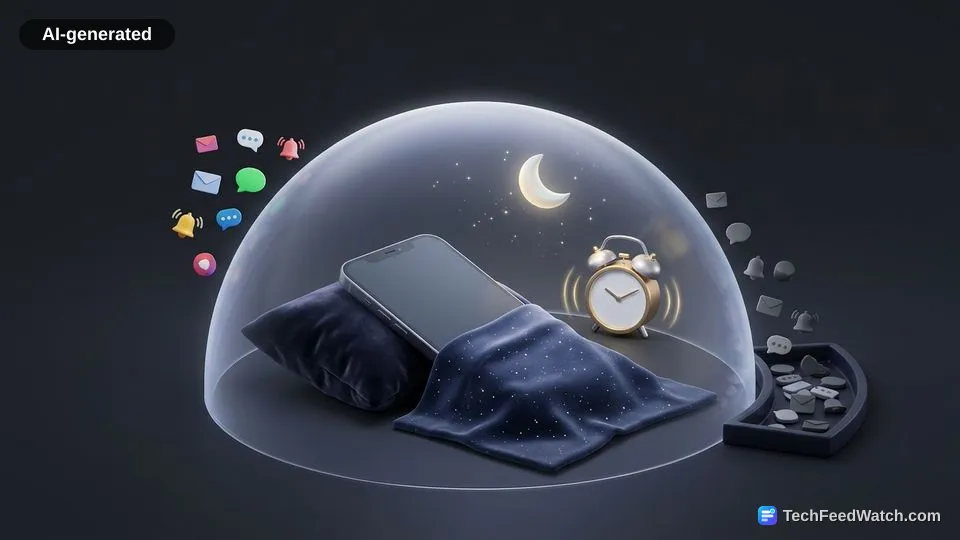
Sleep mode silences all incoming alerts, phone calls, and app notifications. It does this without turning on the display or vibrating.
According to Apple Support, notifications gather silently in Notification Center rather than lighting up your room. Your phone maintains its network connections, but it suppresses the sounds that wake you.
According to Apple Support, contacts who message you through iMessage see a notice stating your notifications are silenced. This status indicator informs friends that you are asleep or unavailable. According to Apple Support, iMessage also gives senders an option to bypass the silence if they have an urgent issue.
According to Apple Support documentation, the table below highlights how normal alert behavior compares against active Sleep Focus rules.
| Feature | Normal Alert Behavior | Sleep Focus Behavior |
|---|---|---|
| Clock Alarms | Sounds aloud at scheduled time | Sounds aloud at scheduled time |
| Phone Calls | Rings aloud and lights up screen | Silenced unless caller repeats within 3 minutes |
| App Notifications | Banners light up lock screen | Gathers silently in Notification Center |
| Lock Screen | Displays full list of alerts | Dims screen and displays a bed icon |
At the same time, it keeps every missed alert organized so you can review them in the morning.
The lock screen dims and hides active notifications
When Sleep mode turns on, your iPhone immediately dims the lock screen. It also hides regular notification banners.
According to Apple Support, the phone displays a small Sleep bed icon in the status bar and on the dimmed screen. This dim appearance prevents bright display backlights from startling your eyes in a dark bedroom.
Your lock screen hides banner clutter so you avoid the temptation to read social feeds. If you tap the screen during the night, you see the time and basic controls instead of a long list of messages. To view pending notices, you must wake the phone and swipe up to open Notification Center.
Several distinct visual changes occur when Sleep mode turns on:
- The entire lock screen dims its wallpaper to protect your eyes in the dark.
- A dedicated Sleep bed icon appears on the screen and in the status bar.
- Incoming alert banners remain hidden until you swipe upward manually.
- The current time displays at low brightness to minimize bedtime distractions.
When the scheduled wake-up time arrives, the display returns to full daytime brightness. It also reveals your normal lock screen widgets (small preview tools for apps).
Smartphones are fantastic gadgets, but they easily become massive time-wasters when apps fight for your attention. The algorithms are built to keep people scrolling late into the night instead of resting. Hiding visual banners removes that constant itch to check incoming messages before you sleep.
How do you adjust bypass permissions and schedules?
You can adjust Sleep mode schedules and caller bypass rules directly inside the Settings app or the Health app. According to Apple Support, users can customize Sleep Focus to allow specific people and apps to send notifications. You decide whether family members, close friends, or emergency services can reach you overnight.
According to Apple Support, turning on Repeated Calls allows a second call from the same person within 3 minutes to ring through. In addition, contacts with Emergency Bypass enabled in the Contacts app will always ring and vibrate according to Apple Support. This setting overrides all Focus modes automatically during critical situations.
To adjust these settings on your device, follow these steps:
- Open the Settings app and select the Focus menu.
- Tap Sleep to open your bedtime notification options.
- Choose People or Apps to permit specific alerts.
- Enable Repeated Calls so an urgent caller who dials twice in 3 minutes breaks through, according to Apple Support.
You stop algorithmic app feeds from interrupting your night, yet trusted contacts can still reach you in a crisis.
Users can allow notifications from specific people and apps. They can also turn on Repeated Calls so a second call from the same person within 3 minutes (according to Apple Support) rings through.
Configuring these emergency exceptions brings genuine peace of mind. For me, safety always comes first, so ensuring critical calls can break through while muting routine noise strikes the right balance. You get uninterrupted rest without being unreachable if something truly urgent occurs.
iOS Today shows how to configure Sleep Focus and filters
The tech podcast iOS Today demonstrates how to set up Sleep Focus filters, customize watch faces, and automate battery settings. Focus filters are settings that adjust how apps behave.
Hosts Mikah Sargent and Rosemary Orchard explain that Focus filters can change system behavior based on personal schedules. These filters trigger specific adjustments the moment bedtime begins.
In the demonstration, Rosemary Orchard explains that she automates Dark Mode and switches on Low Power Mode during sleep. She points out that turning on Low Power Mode prevents constant background email fetching and saves battery life overnight.
Orchard also permits calls from favorites. She allows repeated calls if someone dials twice within 3 minutes.
The hosts also review sleep tracking apps, noting that AutoSleep charges a one-time purchase price of $8.99. In contrast, they observe that subscription apps like Pillow cost $40 a year for premium tools.