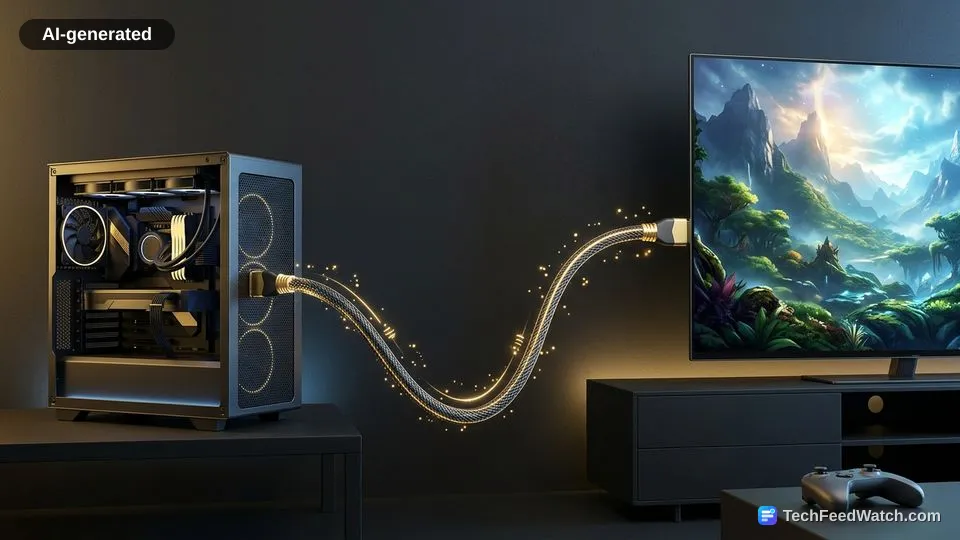
Enable Game Mode and adjust refresh rates in Windows
Activating your television’s Game Mode and selecting the maximum available refresh rate in Windows display settings minimizes input latency and eliminates stuttering.
Televisions process video signals to enhance movies, adding artificial smoothing, motion interpolation, and noise reduction filters. These background image processors add dozens of milliseconds of delay between your controller inputs and screen actions. Turning on Game Mode disables these extra processing pipelines to pass raw video frames straight to the panel.
According to HDMI Forum, the HDMI 2.1 standard introduced Variable Refresh Rate (VRR) to eliminate screen tearing and Auto Low Latency Mode (ALLM) to automatically engage low-lag picture modes.
When ALLM detects a game signal from your computer, the television automatically switches off lag-inducing post-processing. Variable Refresh Rate synchronizes the panel refresh cycle to your graphics card frame output, preventing horizontal frame tearing during heavy action scenes.
You must also confirm your frame rate settings inside the operating system display menu. Windows frequently defaults connected televisions to lower refresh speeds to maintain baseline signal compatibility. Opening display settings allows you to manually select the maximum supported frequency of your television panel.
Can a modern TV match a dedicated gaming monitor?
Modern OLED and premium LED televisions match dedicated gaming monitors in response times and HDR visual immersion, but desktop monitors maintain higher maximum refresh rates.
Premium television panels feature self-lit pixels or advanced local dimming arrays that deliver deep contrast and vivid colors. A living-room TV setup blurs the physical difference between gaming PC and console hardware in shared spaces.
- According to RTINGS, testing across hundreds of displays demonstrates that TVs produce low latency inside dedicated game modes, with flagship models like the LG G5 OLED achieving input lag as low as 4ms at 165Hz under firmware 33.11.35.
- According to RTINGS, dedicated gaming monitors generally deliver higher native refresh rates and sharper text clarity for close-up viewing, whereas TVs excel in HDR picture quality and large-format immersion.
- Dedicated monitors provide specialized ergonomic stands with tilt, swivel, and height adjustments built for desk use.
Competitive multiplayer players often favor dedicated monitors because desktop screens support extreme refresh rates that televisions do not reach. However, players who prioritize immersive single-player experiences often prefer the massive scale and contrast of large television panels.
Lower pixel density and text fringing limit desktop use
Television screens feature lower pixel density than computer monitors at typical desk distances, causing noticeable text fringing and interface scaling issues during everyday computing tasks.
Pixel density measures how tightly packed individual picture elements are across a screen surface. Spreading a display resolution across a wide television creates larger individual pixels than the same resolution on a compact monitor. When sitting close to a television, individual pixels become visible to the naked eye, making fine user interface elements appear rough.
Text rendering algorithms in computer operating systems expect specific subpixel geometry to smooth font edges cleanly. Many television panels use non-standard subpixel layouts that cause slight color shadows along high-contrast text borders.
Color subsampling can also degrade desktop readability if display bandwidth drops below uncompressed limits. According to HDMI Licensing Administrator, the HDMI 2.2 Specification introduced Ultra96 cables delivering up to 96Gbps bandwidth, supporting 4K at 240Hz and 8K at 60Hz at full 4:4:4 chroma to keep text crisp.
Sitting at a normal couch distance conceals these density limitations entirely during gaming sessions. For daily desktop computing, web browsing, or document editing, the lower density causes eye fatigue compared to a dedicated desktop monitor.
Dreamroom64 demonstrates connecting a gaming PC to a plasma TV
Creator Dreamroom64 demonstrates that connecting a dedicated home theater gaming PC to a legacy 1080p plasma TV produces motion clarity and responsive console-like gameplay.
Dreamroom64 connects a PC to a Panasonic ST50 plasma television originally produced in 2012 to output at 1080p at 60 FPS. Dreamroom64 installed a Radeon RX 5700 XT graphics card from 2019, which Dreamroom64 values at $150 on the secondhand market. The creator built the system inside a Fractal North case, reporting an approximate total build cost of $900.
The setup runs Bazzite, an open-source Linux distribution configured for home theater PCs, which boots directly into a controller-friendly game interface. Dreamroom64 notes that a background utility called Gamescope manages scaling and prevents screen tearing without requiring traditional VSync. During testing, Dreamroom64 ran the PC port of Stellar Blade at maxed-out settings on the older hardware.
Dreamroom64 also compared this setup to modern OLED displays, arguing that the plasma TV delivers more natural colors and smoother motion at 60 FPS. Addressing power consumption, Dreamroom64 estimates an extreme draw of 1,000 watts costs 15 cents per hour at local electricity rates of 15 cents per kilowatt-hour.