In what order should core components be installed?
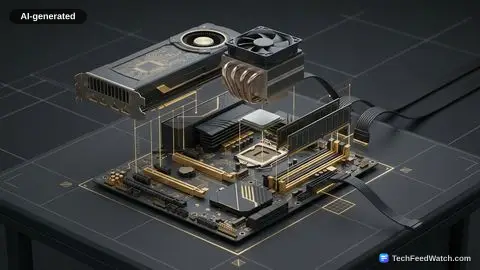
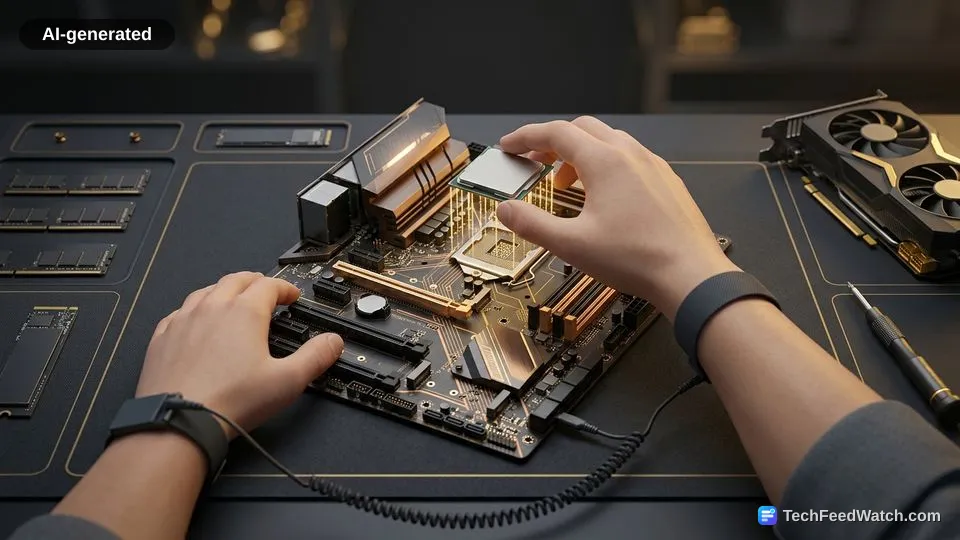
Core components should be installed onto the motherboard outside the case in a strict sequence: processor first, followed by solid-state storage drives, system memory, and the processor cooling bracket. Handling these components outside the chassis provides unobstructed access to delicate sockets and retention clips.
Installing these parts before placing the board into the computer chassis prevents tight-clearance struggles later. According to AMD’s processor handling and installation guidelines, builders installing a cooler without pre-applied thermal compound should apply a thin bead of thermal grease in an “X” pattern across the integrated heat spreader.
Intel’s technical documentation on thermal diagnostics shows that applying either too much or too little thermal paste impedes heat transfer and triggers thermal throttling under load.
System memory requires specific slot placement to ensure full performance. Intel’s technical guides on memory architecture note that motherboards run in dual-channel mode to read and write across two memory channels simultaneously when modules occupy designated paired slots, typically slots 2 and 4. Placing modules into arbitrary slots restricts the processor to single-channel bandwidth.
Mount the motherboard and connect main power cables
Mounting the motherboard requires aligning its rear input-output ports with the chassis shield, screwing the board into pre-installed standoffs, and plugging in the power cables from the power supply unit. Pre-installed standoffs raise the printed circuit board away from conductive metal surfaces.
Chassis standoffs prevent the solder points on the back of the motherboard from touching the bare metal chassis tray and causing an electrical short. Once the board rests securely on all standoffs, tighten the mounting screws in a cross pattern until snug without over-torquing the circuit board.
Power delivery cables must be routed from the power supply unit through chassis cutouts before connecting to the board. The main power connector powers the motherboard circuitry, while dedicated secondary cables deliver power to the processor socket near the top edge of the board.
Connect the case front-panel headers for the power switch, reset button, and status indicators onto the motherboard pins before installing bulky expansion cards.
How do you safely connect high-power graphics cards?
You safely connect a modern graphics card by seating it firmly into the primary PCIe slot and inserting power cables until the locking latch fully clicks into place. Incomplete connections risk thermal runaways and melted terminal housings.
According to PCI-SIG PCIe CEM 5.1 and ATX 3.1 power delivery specifications, the 12V-2x6 auxiliary connector replaces the earlier 12VHPWR plug, utilizing 1.5mm shorter sideband sense pins and 0.25mm longer power terminals to prevent current transmission up to 600 watts unless the connector latches completely. This mechanical change stops current flow when a cable sits loose.
According to Corsair’s power supply technical analysis, first-generation 12VHPWR connectors suffered from high contact resistance and terminal melting when cables were partially seated or bent too close to the connector housing. Builders must route cables with gentle bends and verify full engagement before powering the system.
Is building a gaming PC better than buying pre-built?
Building a gaming PC provides complete component choice and lower replacement costs, but pre-built systems offer single-point warranty coverage and immediate software configuration.
According to Intel’s “How to Choose: Pre-Built vs. Custom PC” guide, custom DIY building allows component-level customization and clear upgrade pathways, whereas pre-built desktops provide complete system warranties and pre-configured operating systems.
A pre-built manufacturer handles hardware troubleshooting for the entire rig under one support umbrella. Intel’s guide also emphasizes that DIY builders must diagnose faulty components themselves and submit individual warranty claims to specific part manufacturers.
While portable designs restrict upgrades, evaluating a gaming PC and gaming laptop or pre-built desktop highlights how modular tower construction protects long-term value through part replacements.
- Component flexibility: DIY builders pick exact parts, whereas pre-builts use bundled parts
- Warranty handling: Pre-builts offer full-system coverage, while DIY systems split warranties across manufacturers
- Labor investment: Pre-builts arrive ready to boot, while custom builds demand manual assembly and operating system installation
- Repair cost: DIY builders replace isolated failing components without shipping the entire computer back
Watch Toasty Bros Build a $1,200 Ryzen 9600X Gaming PC
Toasty Bros demonstrates a complete assembly by constructing an AMD and Nvidia system inside an ATX chassis while explaining component choices, connector types, and budget trade-offs. The build shows practical cable routing and part seating within a mid-range budget.
In the build guide, Toasty Bros assembled a system targeting a $1,200 total budget. The team selected an AMD Ryzen 5 9600X processor, which Toasty Bros noted is a 6-core 12-thread chip priced at about $175 for the AM5 platform.
Toasty Bros paired this CPU with an Asus TUF Gaming B650-Plus WiFi motherboard bought for 150 bucks. Cooling was handled by an 80 bucks Montech HyperFlow Silent 360 liquid cooler, according to Toasty Bros.
Toasty Bros opted for a single stick of 16 gigs Patriot Viper memory running at DDR5 6000 megatransfers CL30 to curb costs, alongside a 1-terabyte Gen 3 FanXiang drive priced at $140. For graphics, Toasty Bros installed a PNY GeForce RTX 5060 Ti graphics card priced at $370, powering the rig with a $45 Raidmax Cobra Power 650W 80 Plus Gold unit.
The assembly was completed inside a $99 Gamdias M4 case, as shown by Toasty Bros. Jackson and Matt of Toasty Bros demonstrated installing the CPU into the AM5 socket by aligning the gold triangle indicators, seating an M.2 solid-state drive at an angle before securing it with a PH1 bit, and using a PH2 bit for chassis screws.